# Labeling web elements
Once you've waited for the extension to load, you can now start selecting and deciding on labels for web elements. There are two ways you can select web elements: "Static" elements, and "Dynamic" elements. We'll use both in this example automation.
# Static elements
Static elements are things on the web you want to be able to deal with one at a time, and are simply selected by clicking "Lock page" in the extension sidebar, and by clicking the element once. When the page is locked, you are blocked from making any actions on the website aside from selecting elements to label in our extension. To resume working on the website, simply click "Unlock page" in our extension.
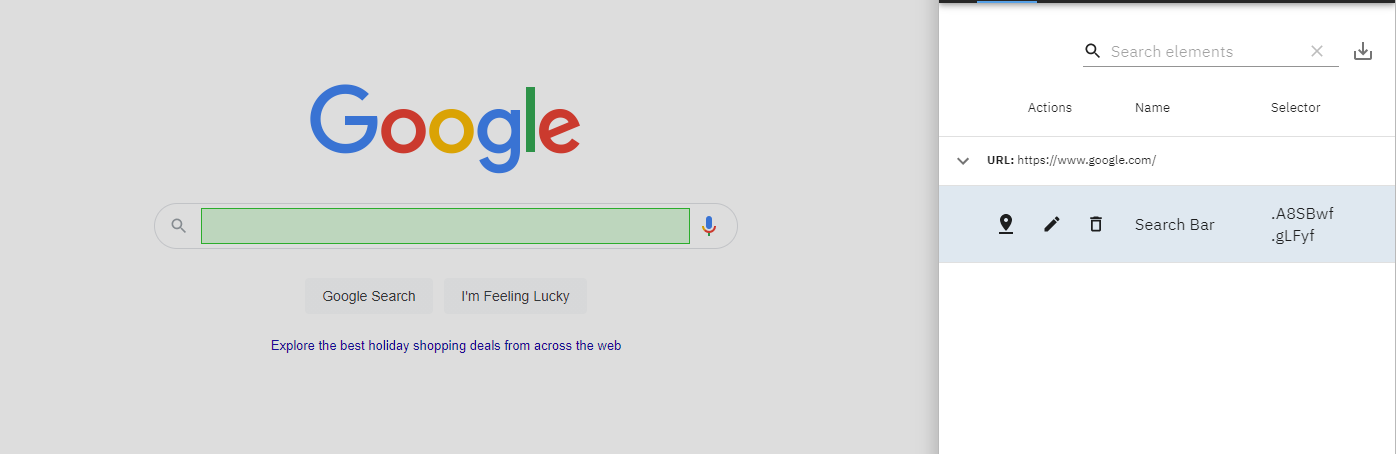
For our automation, there are only two unique elements we need to select: the search bar (static element), and the search results on Google (dynamic element). Let's start by selecting the search bar. If the browser has loaded successfully with our extension, you should see a page like the following:
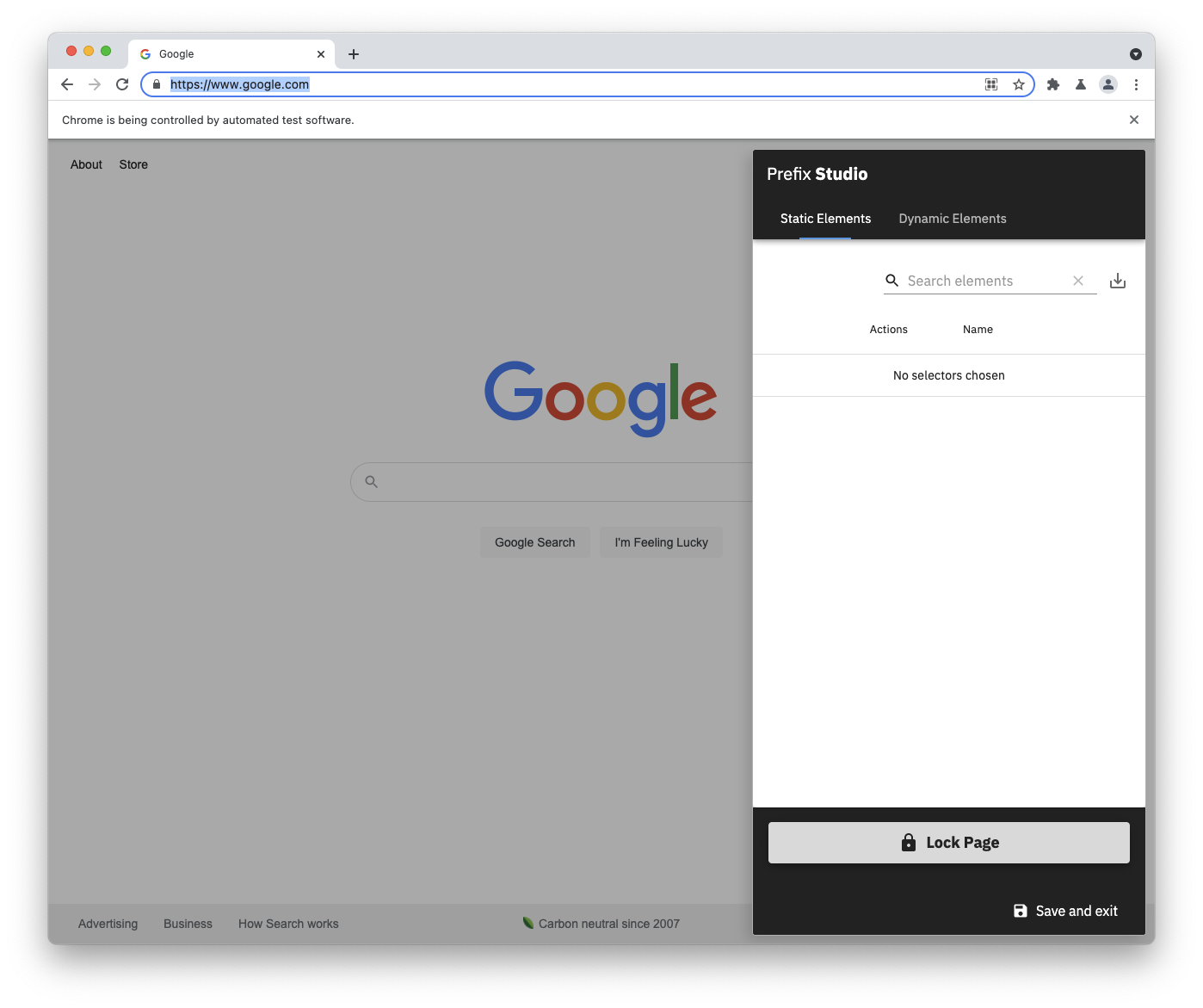
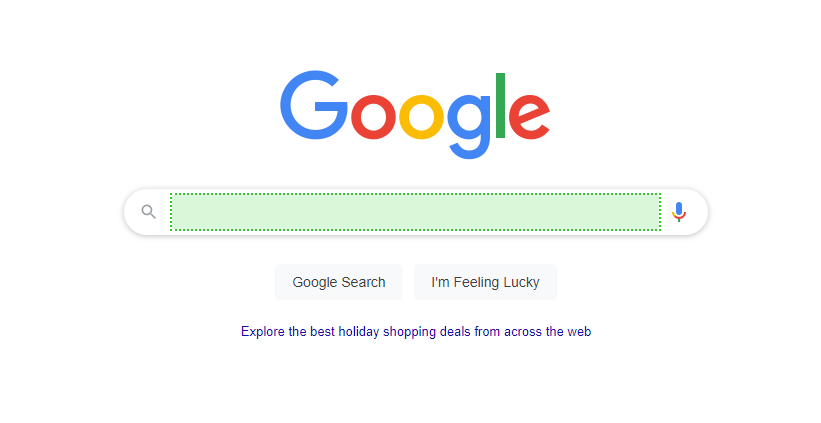
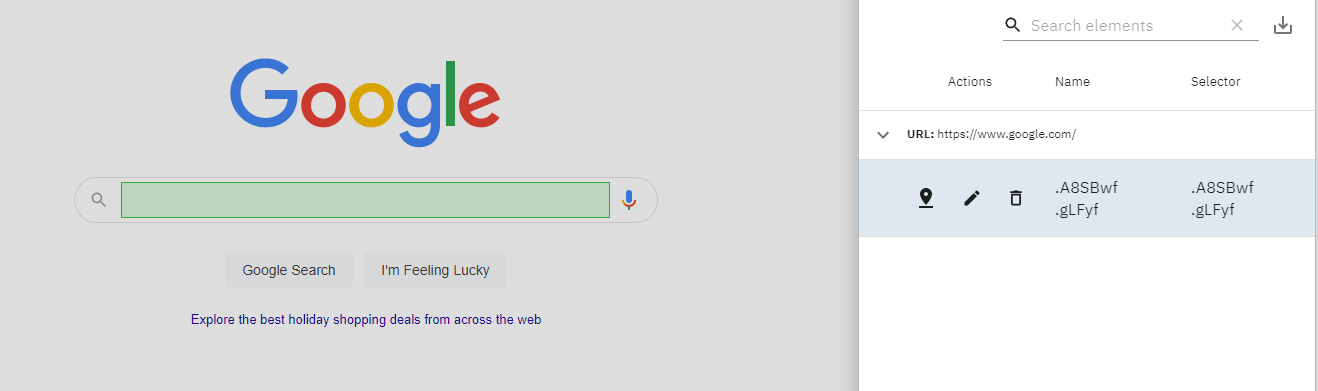
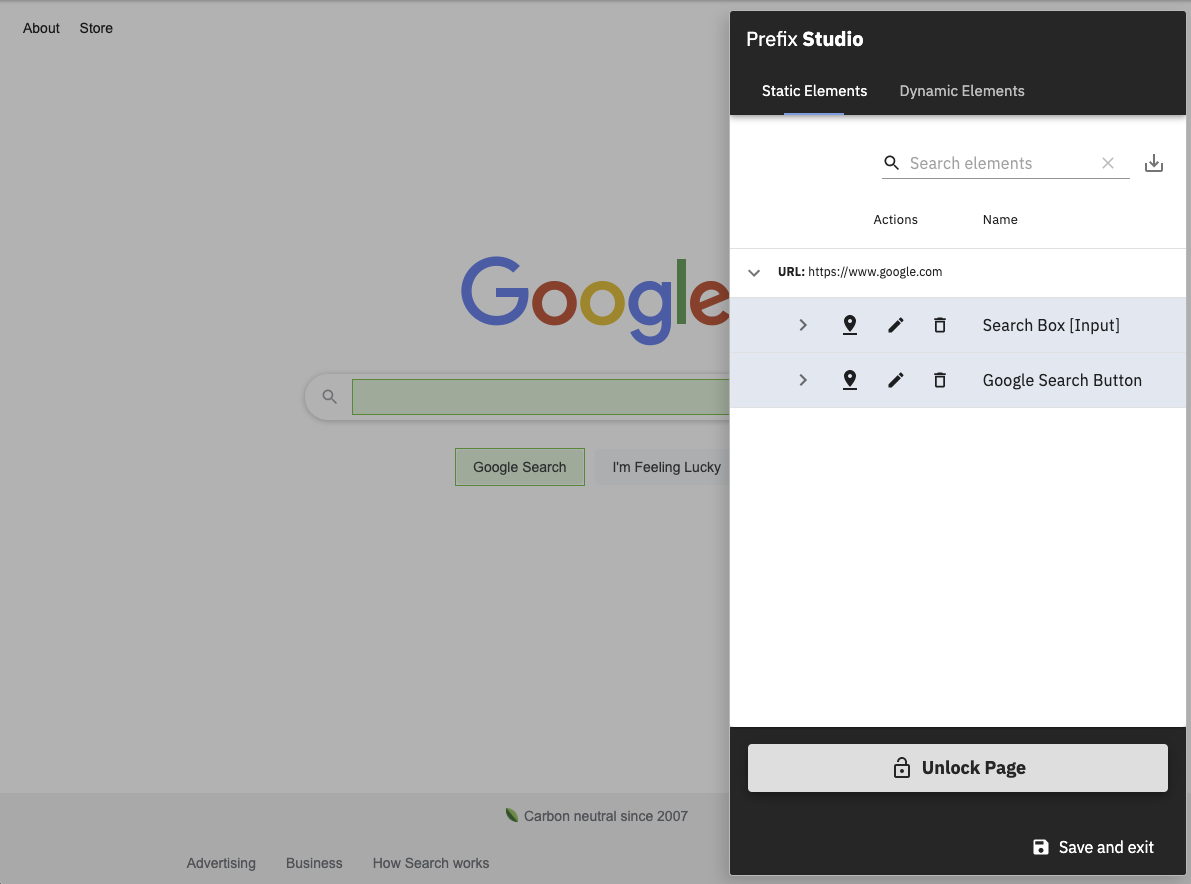
Because our automation starts on Google, we can get started selecting the search bar element right away. To do this, click the "Lock Page" button, select the search bar, and label the newly selected element in the extension as the "Search Bar". Finally, since we're done selecting elements here, unlock the page.



# Dynamic elements
When you've unlocked the page, you can use the website normally again. This is necessary to navigate to the next page in your automation, and show Prefix which things to work with next. Type "Redwoods" (or anything, really) into the search bar, and hit enter to view the search results, which we need to label next.
There are multiple search results on the page, so we'll want to select the results as a dynamic element. To do this, wait for the search results to load, click the "Dynamic Elements" tab on the extension, and lock the page. Now, click a search result title. Your screen should look like the following:
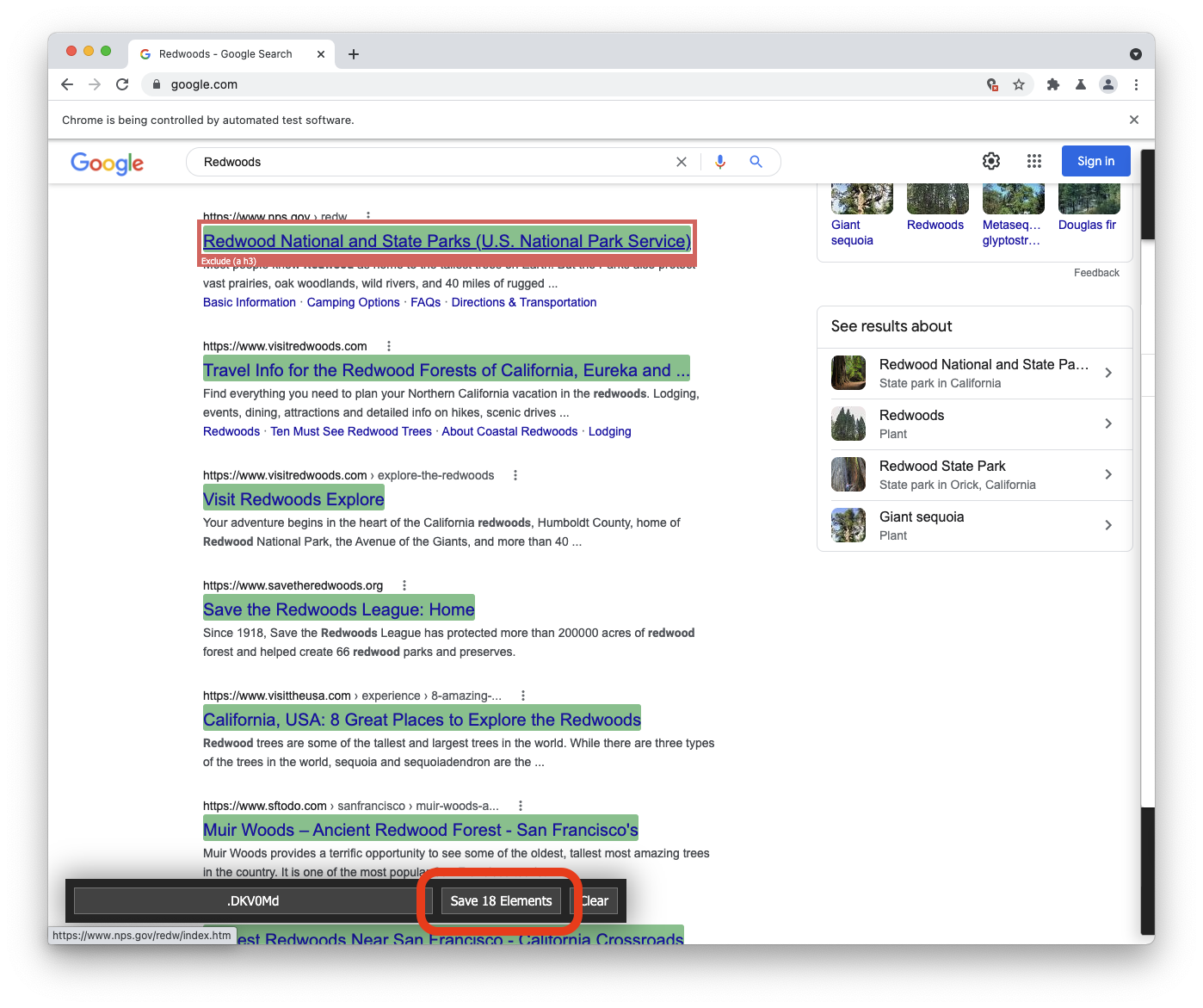
Prefix will make a guess as to what elements on the page you might be interested in using the element you clicked. While we're only interested in the search result titles on the page, Prefix guessed I was interested in the titles, descriptions, and icons on the page (highlighted in green).
To exclude content that is not a search result title, click an element highlighted in yellow that you want to get rid of in your data group. Here, we click a website description, which tells Prefix all it needs to figure out I'm not interested in anything on this page besides the search result titles.
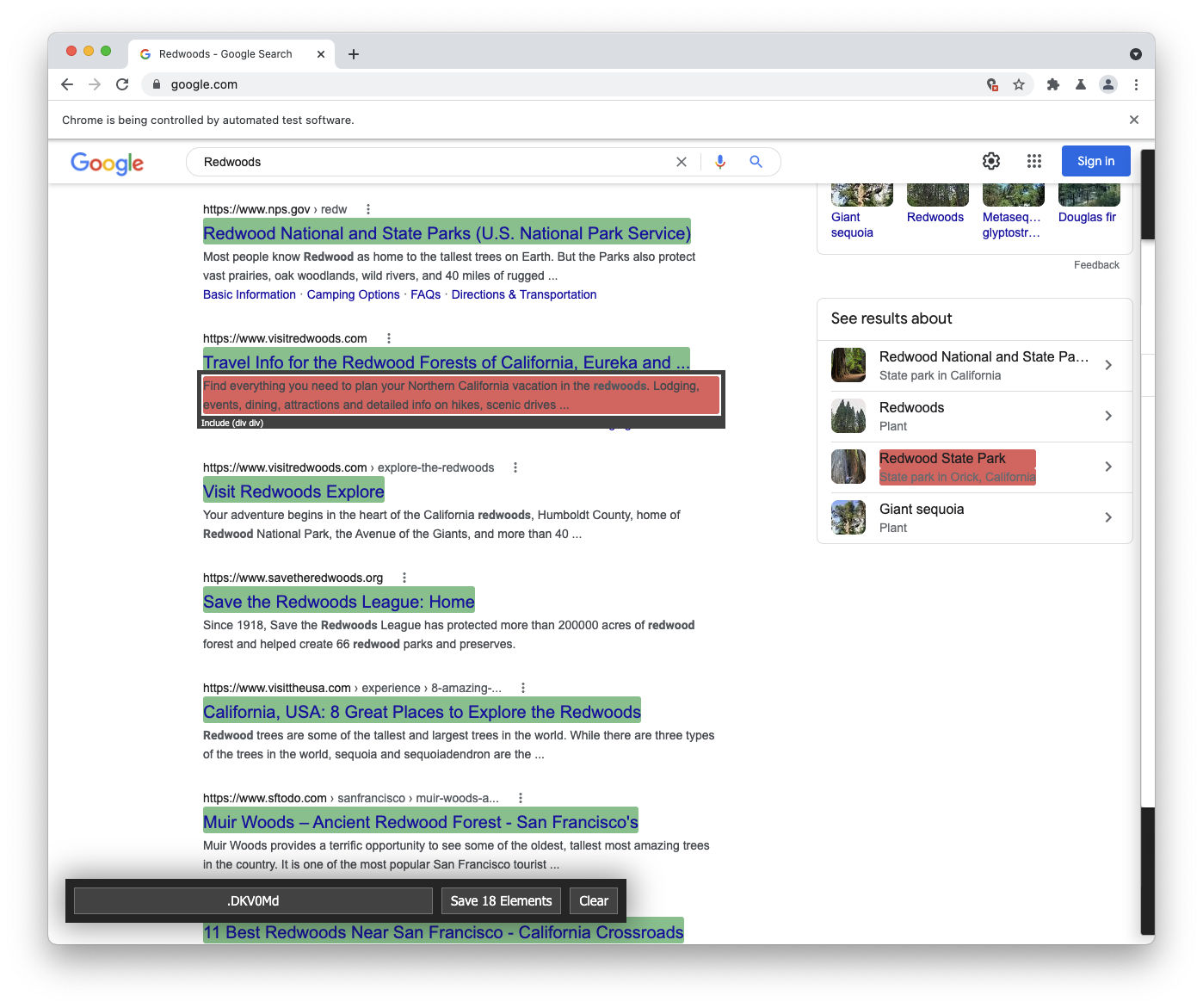
Through this process of selection and rejection, you will be able to select a great variety of things on websites where automation/scraping is trickier than usual. To finish adding your data group, click the "Save Elements" button at the bottom of the page, and label the data group in the extension.
That's it! Now, we can exit our labeling extension and return to the studio by clicking the Save and quit button in the bottom right of the extension.
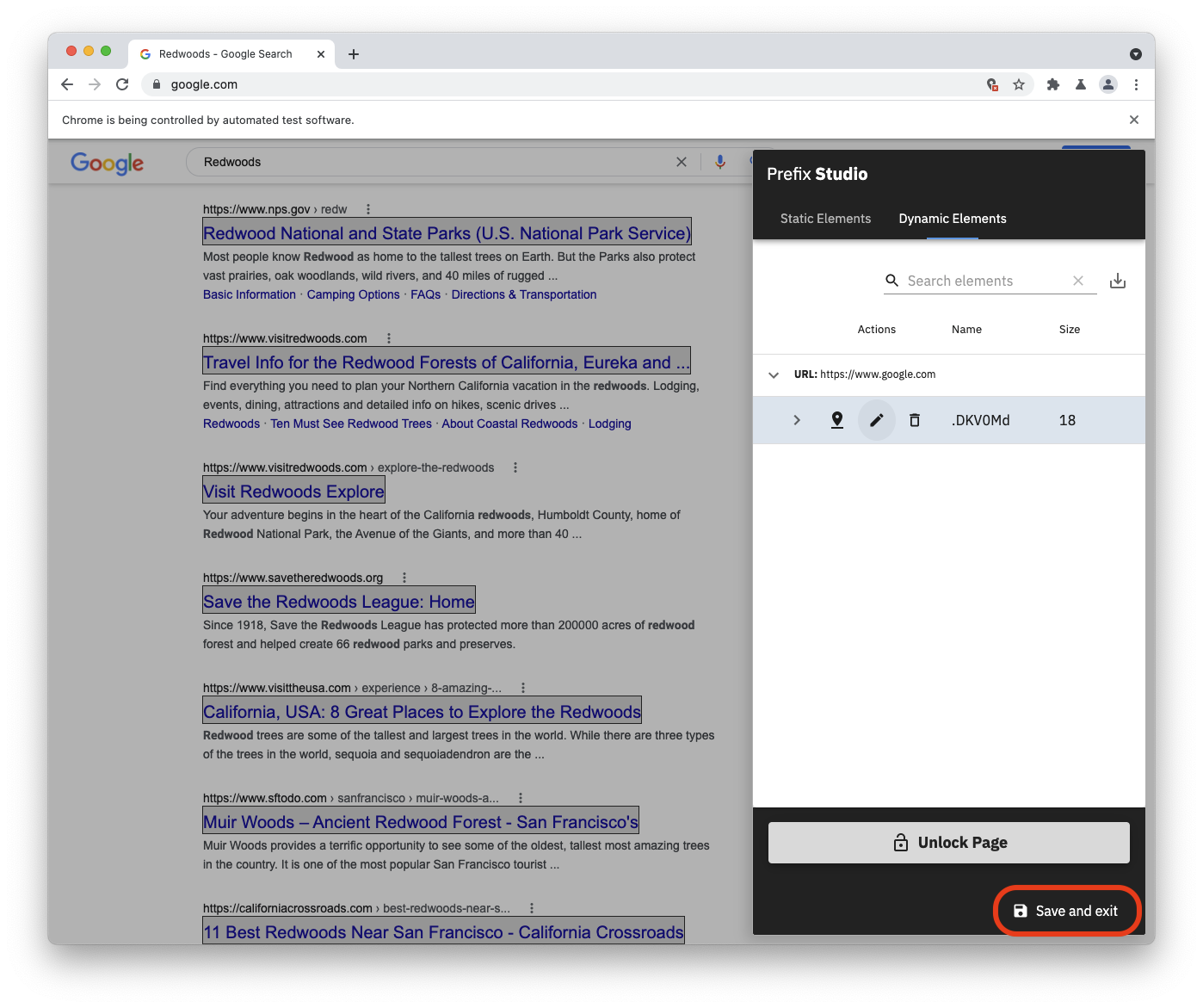
It's important to exit the browser only using the extension's Save and exit button. Closing out of the browser using any other method will not save your labeled elements.