# Advanced features
# Recordings
Often, automations you develop in Prefix will contain long sequences of actions that do not change between runs. Building these sequences in Prefix by labeling elements and dragging blocks can be time consuming, so for these workflows, we offer a recording extension. When activated, this extension will automatically record actions you take on your browser, and generate a sequence of blocks in the Studio based on actions it was able to successfully identify.
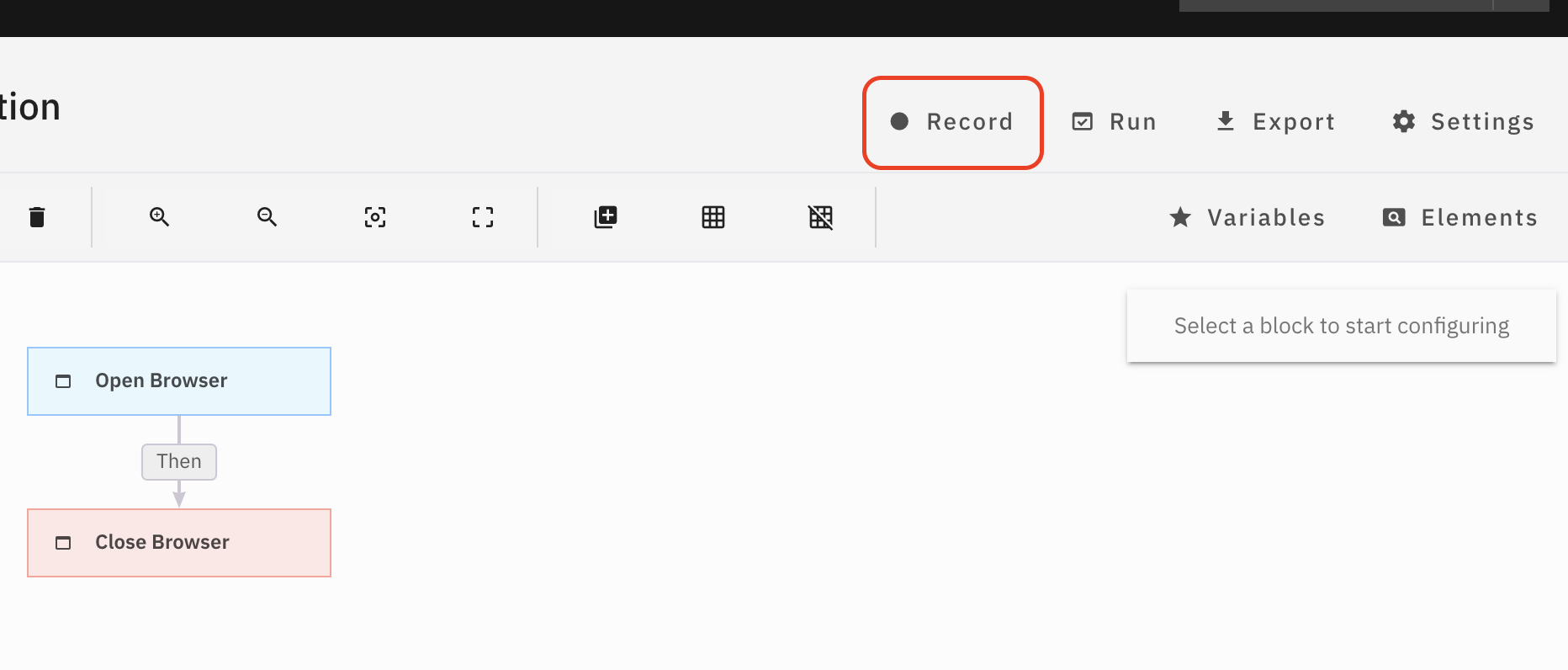
As the extension captures nearly every action you take on your browser, it is likely that the recorded steps will require some post-processing in the model editor, though as a whole this process is dramatically faster than manually building certain parts of your automation.
To activate the recorder, click the Record button from the model editor, and wait for a browser to load on screen. Within the browser's extensions menu, you will be able to pin and activate the recording extension.
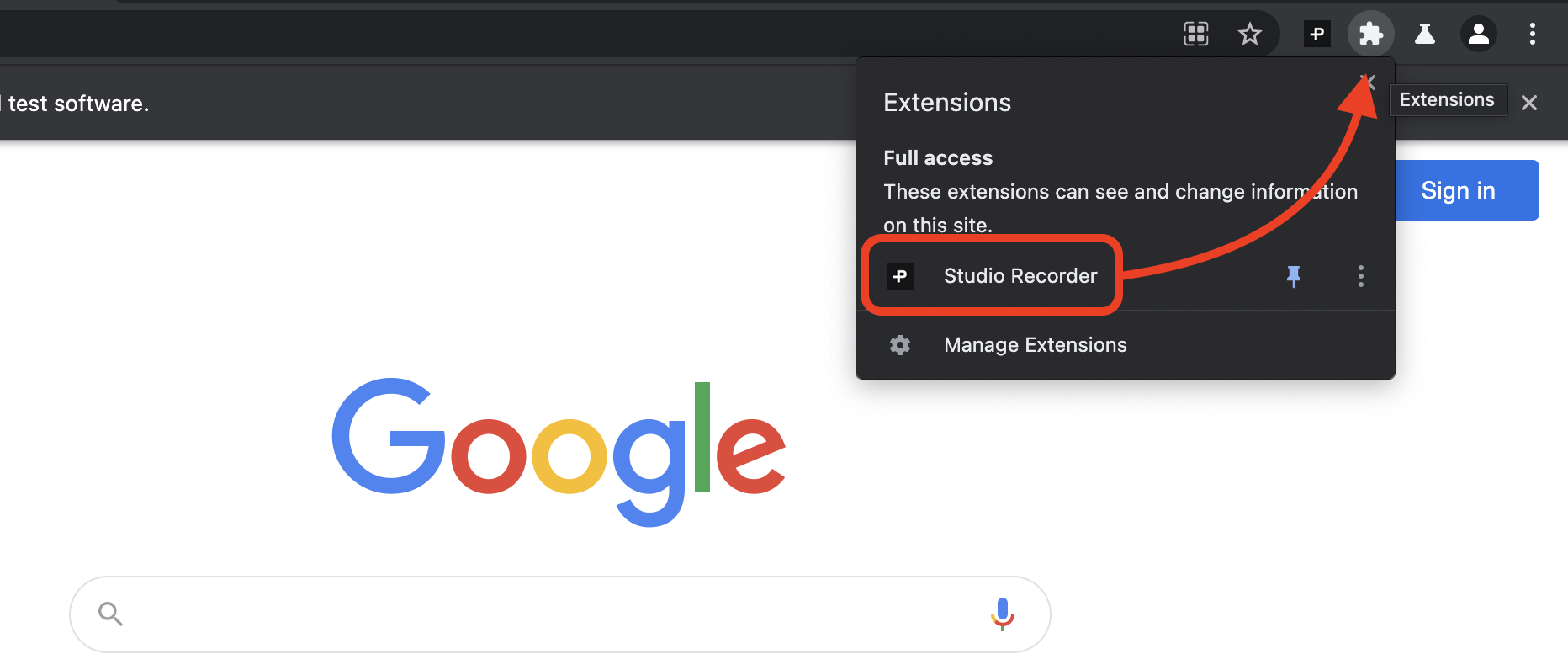
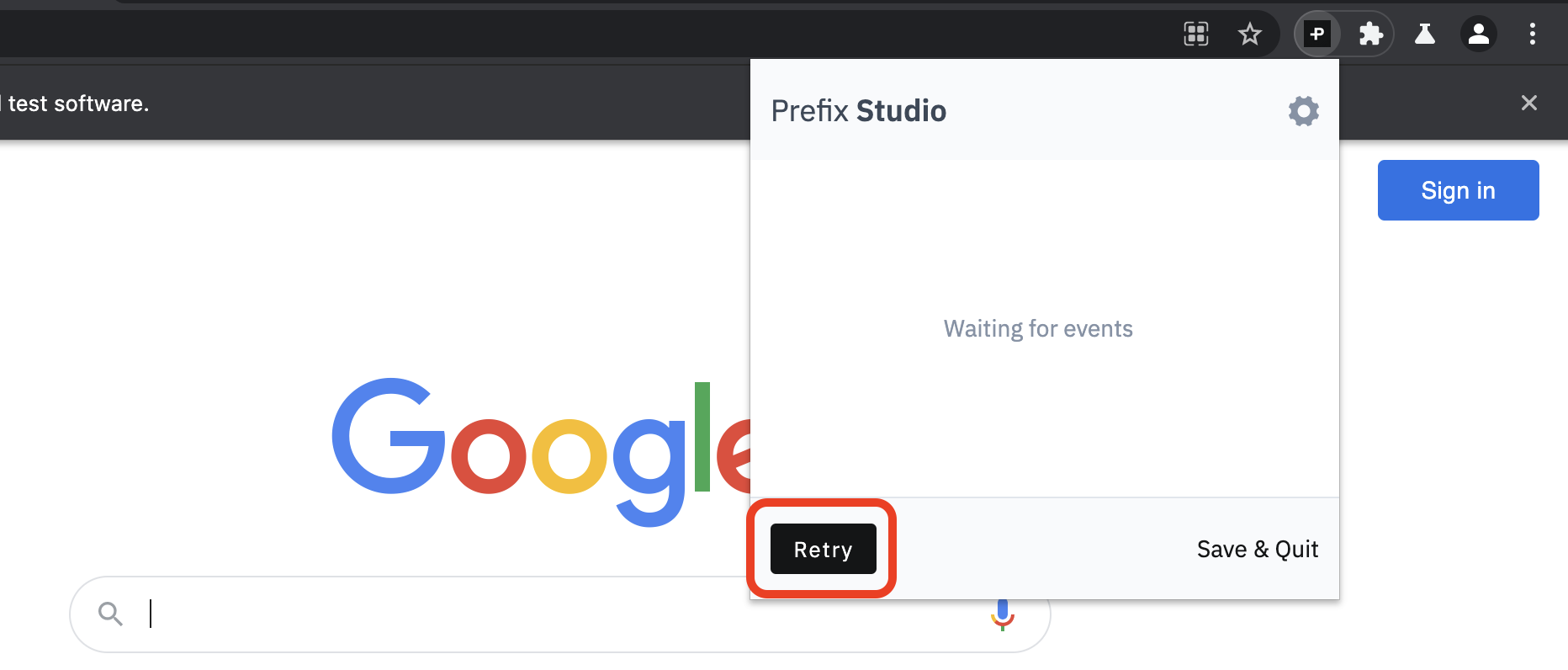
Start recording by clicking the extension icon, and clicking "Retry", if it appears, followed by "Start Recording". When you're ready to save your recording, open the popup again, and click "Save & Quit". This should close the browser, and populate your model with a list of steps that correspond to your actions while recording.
# Variables
Just like variables in code, variables in Prefix models contain values for use within the duration of a particular automation. Variables are also inputs to automations, and can be provided in your API call to start automations remotely, or via a form when running automations locally.
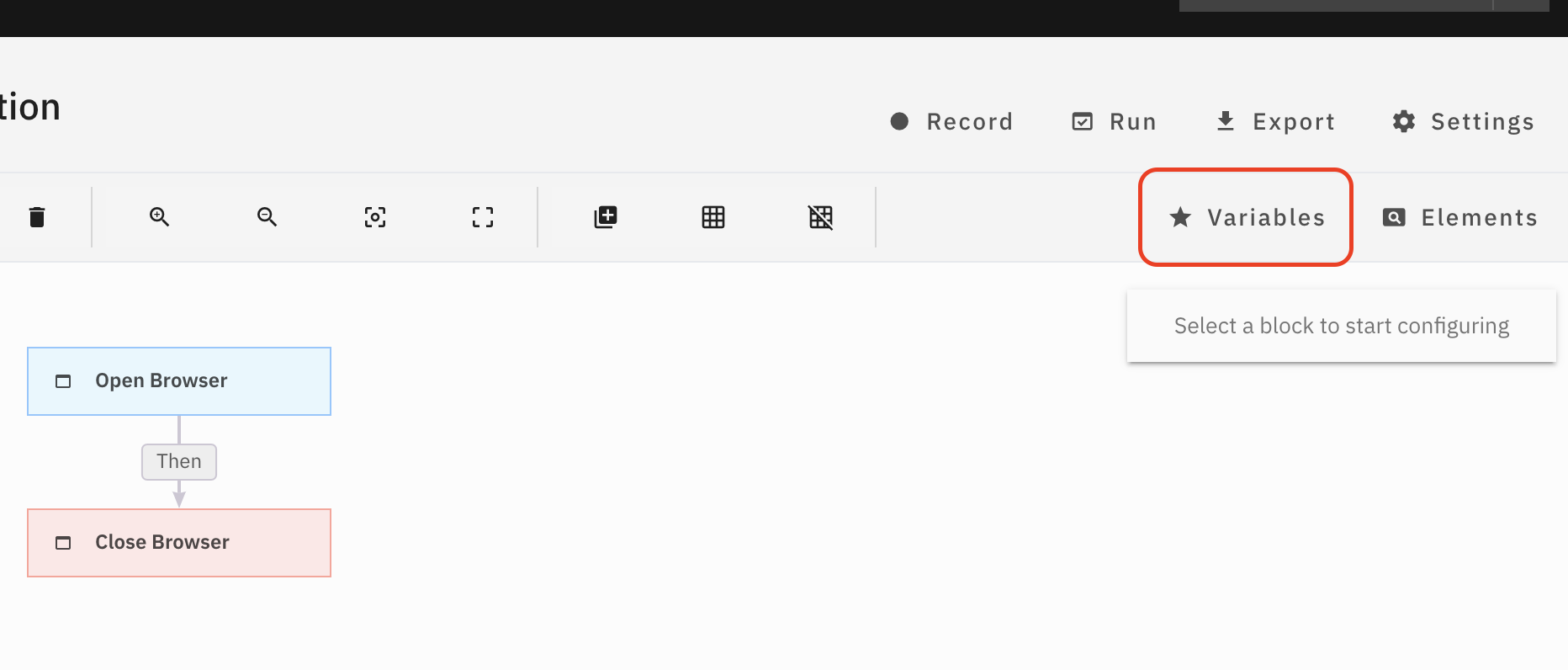
To create a new variable, open the Variables dialog from the model editor, and click "New Variable". When your automation runs, you will be asked to provide custom values for each variable you use in your automation, and if none are provided, the default values will be used.
# Computed elements
Computed elements are a particularly powerful construct in Prefix that allows automations to take actions on web elements conditionally, depending on variable values. Add a computed element from the Elements dialog, also available in the model editor.
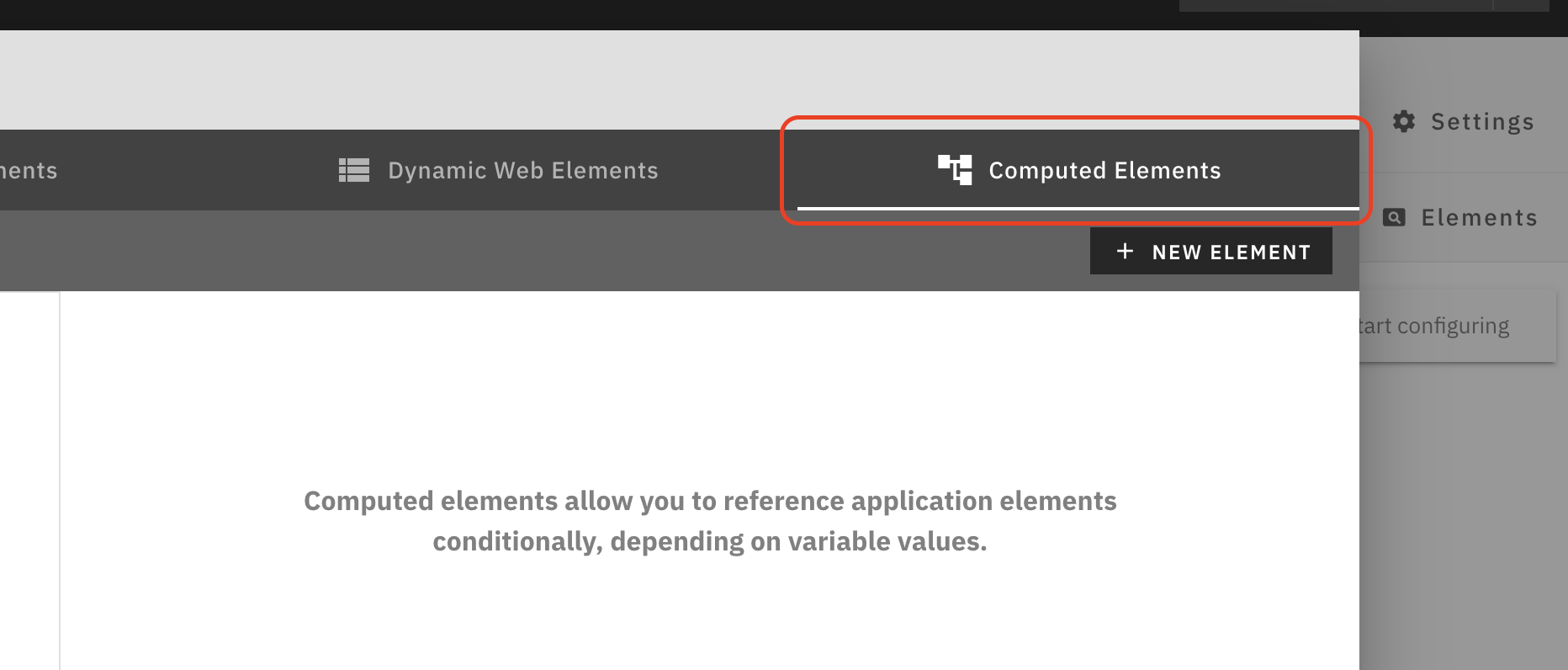
Computed elements take variables in your current automation as inputs, and output a single static element. For example, if I'd selected static elements "Radio Button 1" and "Radio Button 2" from a website, and sometimes wanted to click one or the other conditionally, I can create a computed element that checks if a variable meets my condition (equality, greater than, contains, etc.), and sometimes returns Radio Button 1, and other times Radio Button 2, depending on the variable value I provide when running the automation. This is particularly useful for filling out forms, since your automations will look much simpler, with only one "Click Once" action block referring to the computed element "RadioButton1orRadioButton2".